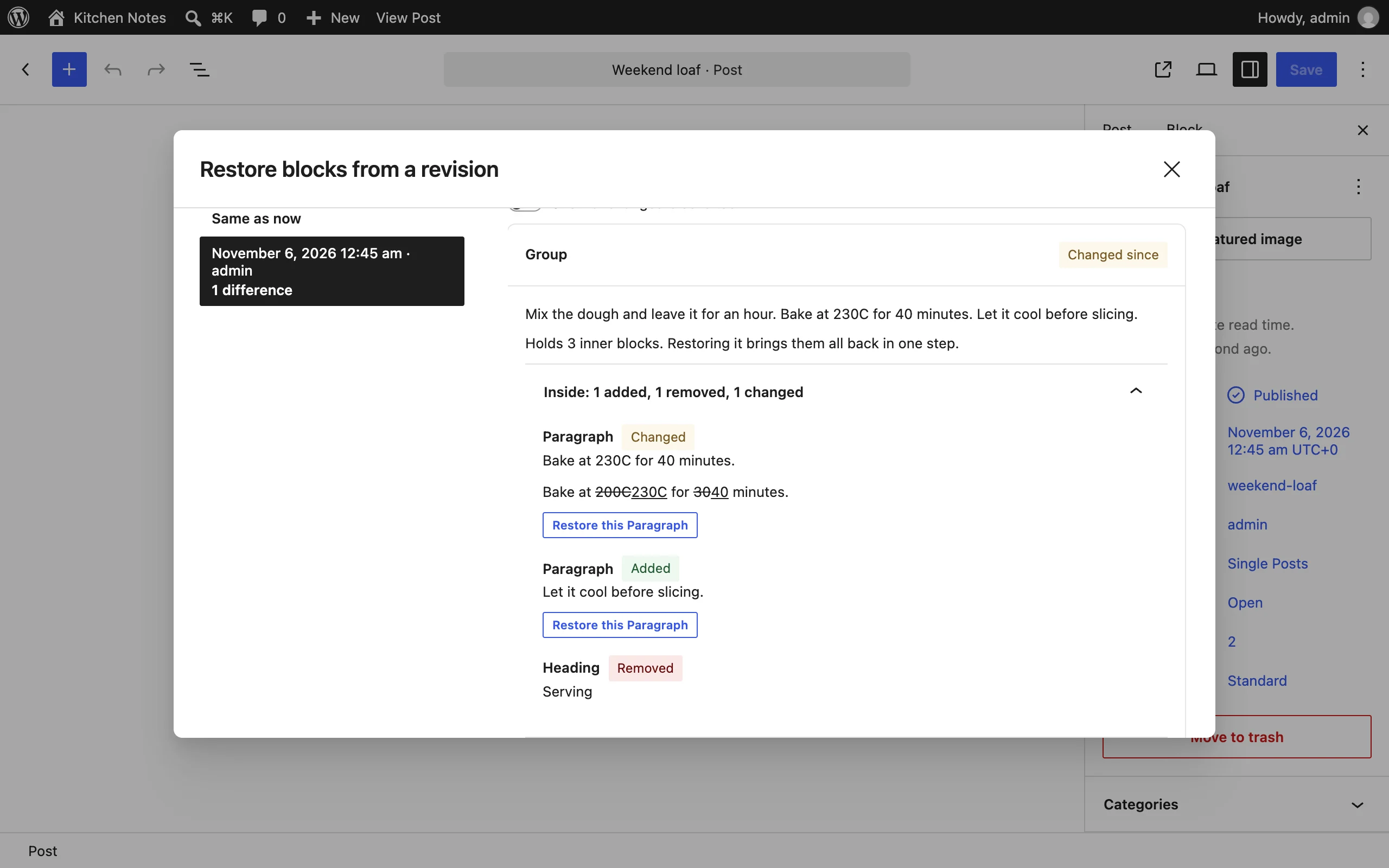
What it does
WordPress revisions are all or nothing. If someone deleted a paragraph last week and the post has been edited ten times since, "Restore This Revision" brings the paragraph back but throws away the ten edits. The usual workaround is copying text out of the revisions screen by hand, which loses the block’s formatting and settings.
Restore Blocks from Revisions works inside the block editor and restores single blocks, with all their settings.
Restore one block to an earlier version
- Select the block and open its menu (⋮).
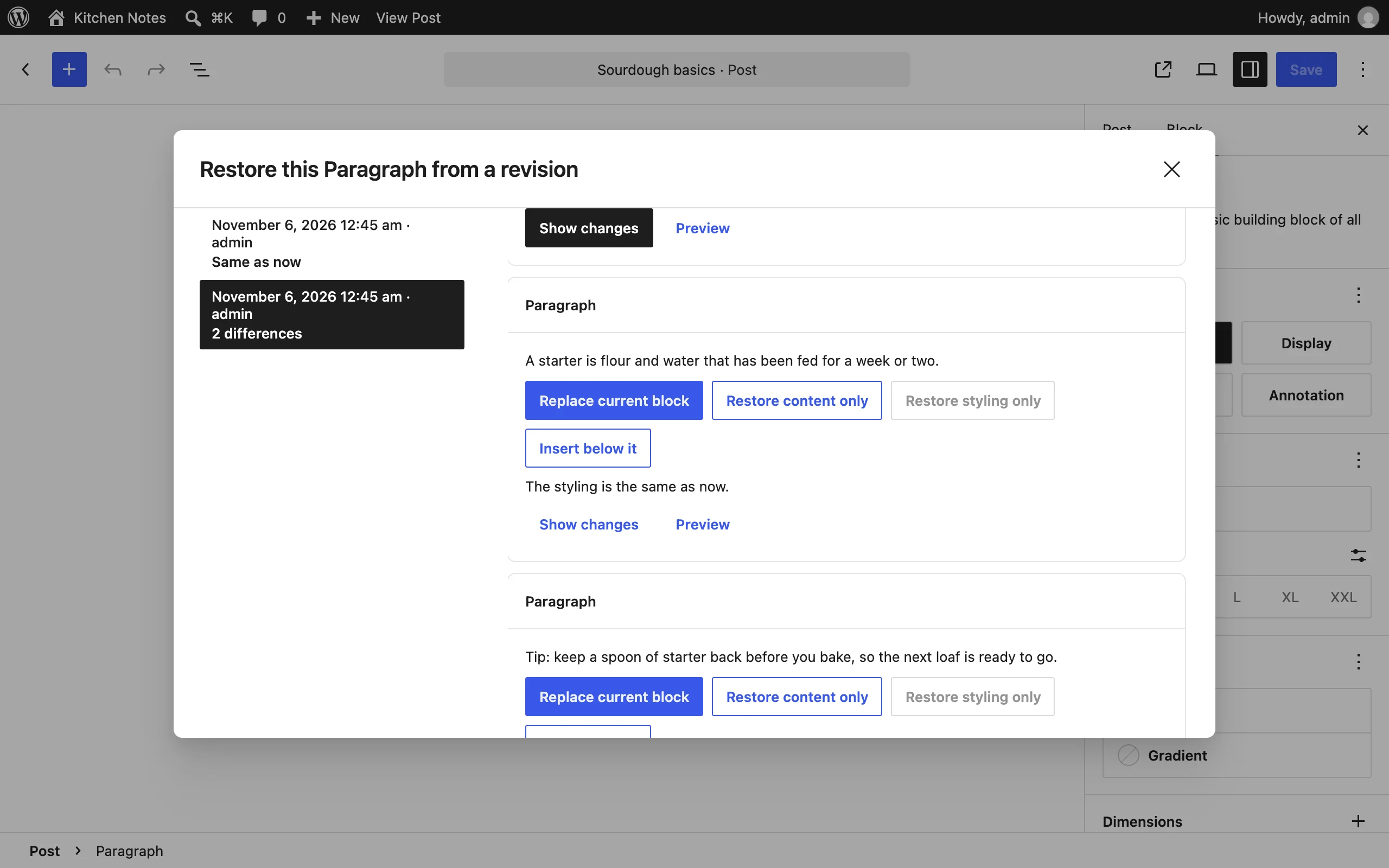
- Choose Restore from a revision…
- Pick a revision. You see the versions of that block in it, best match first.
- Click Replace current block, or Insert below it to compare them side by side.
Bring back a deleted block
- Open the editor’s main menu (⋮ at the top right).
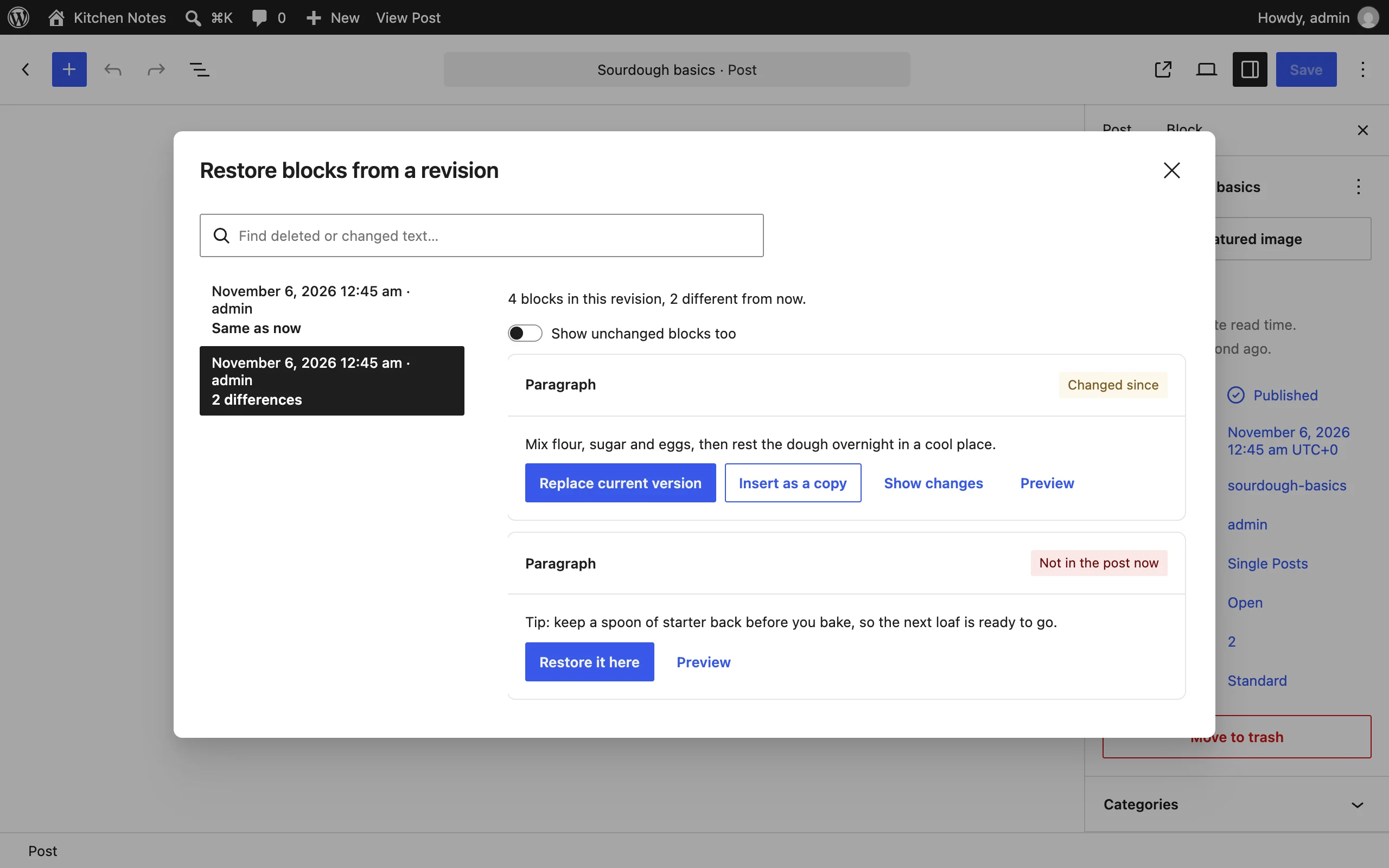
- Choose Restore blocks from a revision.
- Pick a revision. Its blocks are labelled Not in the post now, Changed since or Same as now.
- Click Restore it here to put a deleted block back where it was.
Find text you deleted
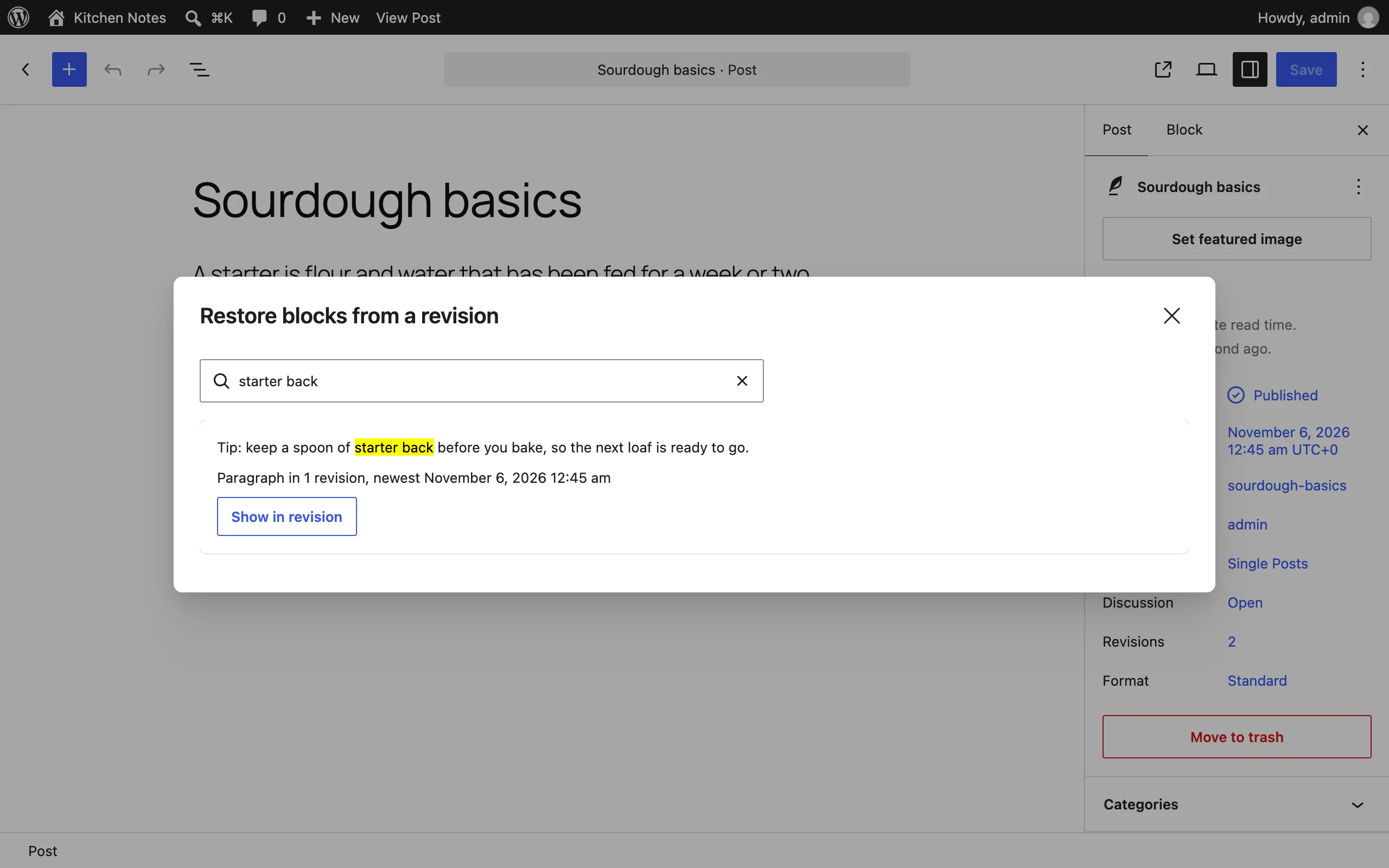
Can’t remember which revision had the sentence you need? Type a few words into "Find text in old revisions". Every block that contained them is listed, with how many revisions it appears in. Click one to jump to it.
Every restore is a normal edit: press Ctrl+Z (⌘Z on a Mac) to undo it, and nothing is saved until you update the post.
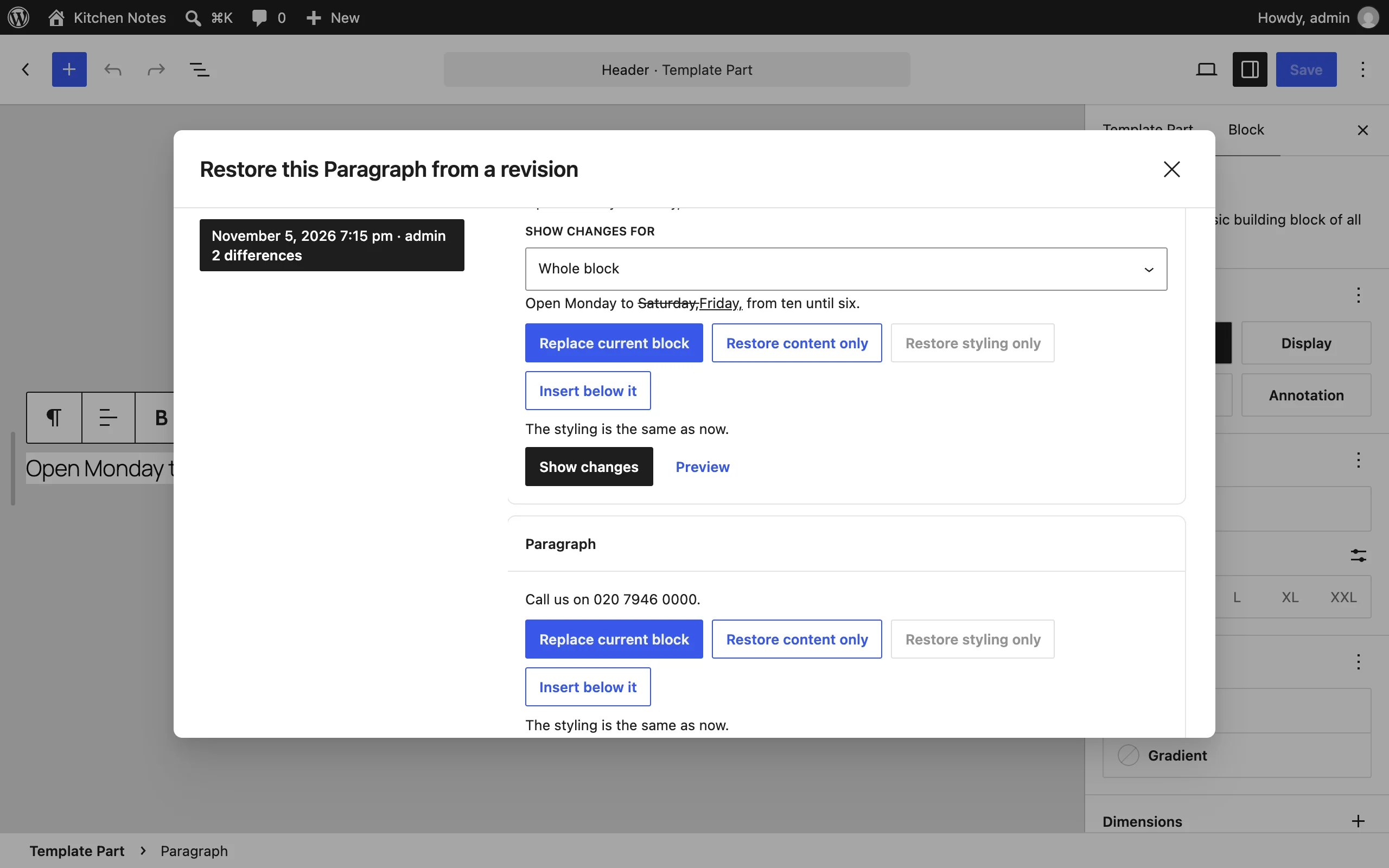
- "Show changes" highlights the words that differ between the block now and its old version.
- Previews show each block as it looked in that revision.
- Each revision shows who saved it and how many blocks differ from now. Autosaves are labelled, and the window opens on the newest revision that actually differs.
- Works with any block, including blocks from other plugins, and with every post type that has revisions.
- Revisions are loaded without rendering them on the server, so posts with many revisions open quickly.
No settings and nothing stored in the database.
Free and open source under the GPL. No pro version, no upsells, no ads in wp-admin, no tracking. And it stays that way.
Install
- Download axle-block-restore.zip (v3.1.0).
- In wp-admin, go to Plugins > Add New Plugin > Upload Plugin and choose the zip.
- Click Install Now, then Activate.
Or with WP-CLI:
$ wp plugin install https://github.com/aryanjasala/axle-block-restore/releases/download/v3.1.0/axle-block-restore.zip --activateTo try it first, try.axlewp.com/axle-block-restore opens a private WordPress in your browser with this release and some demo content.
Compatibility
| WordPress | PHP | Status |
|---|---|---|
| WordPress 7.1 | PHP 8.3 | Tested |
| WordPress 6.9 | PHP 8.3 | Tested |
| WordPress 6.6 | PHP 7.4 | Tested |
Questions
How does it find "the same block" in an old revision?
Blocks have no permanent ID between saves, so it compares blocks of the same type, preferring the one at the same position and with the most words in common. You can always pick a different version from the list.
Where is the option? I can’t see it.
It appears in the block editor for post types that keep revisions, such as posts and pages. If revisions are turned off for the site (WP_POST_REVISIONS set to false), there is nothing to restore from.
Does it work in the Site Editor?
Not yet. Templates have revisions too, and support is planned.
For developers
Every default, limit and message has a filter, and every change fires an action. The full reference, with constants, abilities and WP-CLI, is in REFERENCE.md.
axle_block_restore_post_typesFilter- Post types that get Axle Block Restore in the post editor and the abilities. Default every REST-enabled post type with revisions and the editor. Types without revisions are dropped
( string[] $post_types ) axle_block_restore_site_editor_post_typesFilter- Post types that get it in the Site Editor. Default
wp_template,wp_template_partandwp_block. Types that do not exist, have no revisions or are not in the REST API are dropped( string[] $post_types ) axle_block_restore_capabilityFilter- Capability a user needs before the scripts load for a post type. Default the type’s own
edit_postscapability:edit_theme_optionsfor templates and parts,edit_postsfor patterns and posts. An empty value falls back to the default( string $capability, string $post_type ) axle_block_restore_copy_post_typesFilter- Post types the Another post view copies from, and the search route allows. Default every post type the user can edit that has Axle Block Restore. Types the user cannot edit are dropped. An empty array turns the view off and makes the route answer 403
( string[] $post_types ) axle_block_restore_copy_max_resultsFilter- Most posts one search returns. Default 20
( int $max ) axleBlockRestore.canRestoreFilter- Whether a block’s menu and the "Restore selected block" command are offered for a block
( boolean canRestore, Object block ) axleBlockRestore.revisionsPerPageFilter- Revisions loaded at a time, 1 to 100. Default 50
( number perPage ) axleBlockRestore.removedRevisionsFilter- How many of the newest revisions the Removed blocks view looks through, 1 to 100. Default 20
( number count ) axleBlockRestore.removedSimilarityFilter- Share of words, 0 to 1, a block of the same type now must have in common with an old block for it to count as edited, not removed. Default 0.6. 1 lists every block that is not identical
( number similarity ) axleBlockRestore.removedBlocksFilter- The blocks listed as removed, newest removal first. Each has
name,title,text,path,block,revisionId,revisionIdsandrewritten( Object[] entries, { revisionIds } ) axleBlockRestore.copyPostTypesFilter- Post types the Another post view offers. Can only narrow the PHP list. An empty array hides the view
( string[] postTypes ) axleBlockRestore.attributeRoleFilter- Whether an attribute is
content,styleorkeepfor a partial restore. Default fromblock.jsonrole, the attribute’s source and the style list. Any other return value is ignored( string role, string name, string blockName, Object schema ) axleBlockRestore.styleAttributesFilter- Attribute names that count as style. Default
style,className,align,layout,backgroundColor,textColor,fontSize,fontFamily,gradient,borderColor( string[] names, string blockName ) axleBlockRestore.restoreModesFilter- Ways to restore one block:
replace,content,style. Default all three.replaceis always kept, unknown names are dropped( string[] modes ) axleBlockRestore.commandsFilter- Command palette entries, each
{ name, label, icon, callback }. Add, change or remove entries( Object[] commands, string|null blockId ) axleBlockRestore.openedAction- The window opened.
viewisrevisionsorremoved.clientIdis null for the whole post, template, part or pattern. Template and part IDs look liketheme//slug( { clientId, postType, postId, focusSearch, view } ) axleBlockRestore.restoredAction- A block came back.
modeisreplace,content,style,insert-after,replace-at,insert-at,inner-replace,inner-insert,removed-place,removed-end,removed-below,other-post-beloworother-post-end. For the last two the details also havesourcePostIdandsourcePostType, andrevisionIdis a revision of that post orcurrent( { mode, block, revisionId, postId, postType } )
Changelog
3.1.0
- New: show recently removed blocks and copy blocks from another post
- New: restore blocks in the Site Editor, from the command palette, and by content or styling
3.0.0
- Changed (breaking change): rename to Axle Block Restore for WordPress.org
- Fix: keep the selected revision’s details readable
2.0.1
- Fix: load revision content on WordPress 6.6 to 6.9
Every release, with notes: GitHub releases.